
Technical Resources
Effective Date: February 11, 2026
Updated: May 8, 2026
Getting Started with Eduvero
Eduvero is designed to provide teachers with fast, mobile-first instructional support that works in real classroom environments, without complicated implementation or heavy IT requirements.
Built for quick, independent use, Eduvero allows teachers to download, set up, and begin using the app in just minutes.
This page includes technical requirements, supported devices, installation instructions, and classroom setup guidance to help educators get started quickly and confidently. Whether you are installing Eduvero on a personal device or preparing for classroom use, the information below will help ensure a smooth and successful setup experience.
App Access - Teacher Use
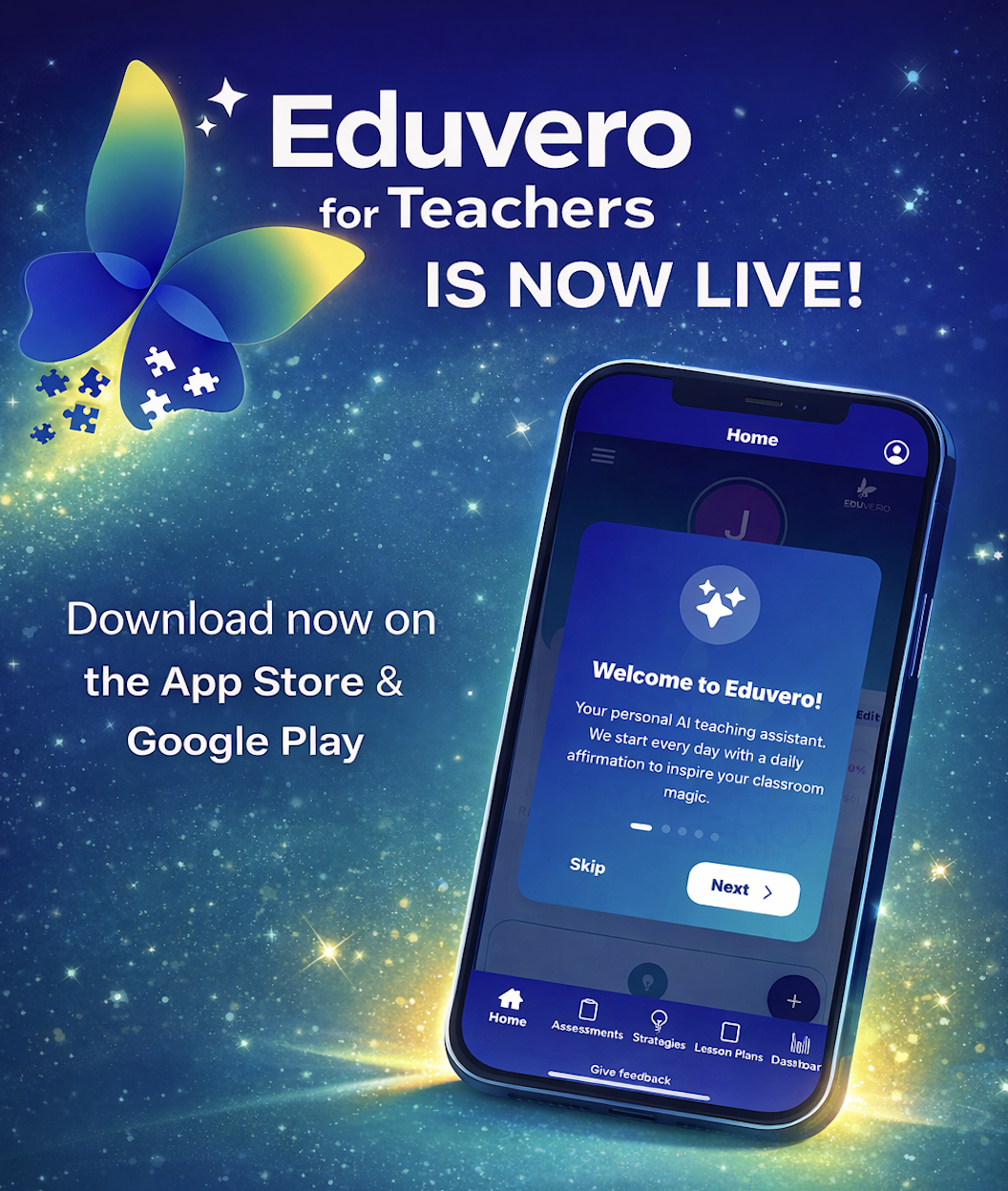
Download Eduvero
Eduvero is available on:
Steps
Open the App Store or Google Play Store
Search for Eduvero for Teachers
Tap Download/Install
Open the app and sign in or create an account
Device Requirements
iOS
iOS 15 or later
iPhone 8 or newer recommended
MacBooks
Android
Android 8 or later
8GB RAM or higher recommended for better performance
App Access - Student Use (Mini-Assessment Administration)
Students can take Eduvero assessments using any devices with a web browser, including Chromebooks.
Steps
Type app.eduvero.com in the URL bar of any web browser
(OPTIONAL) Click Install on the far right side of the URL bar, once app.eduvero.com has loaded
Have students click STUDENT ACCESS
Tell students the ACCESS CODE created by the Eduvero for Teachers app following the creation of a mini-assessment
app.eduvero.com will automatically become a lockdown browser and assessment will be presented to students
Updating the App
Keeping Eduvero updated ensures the best performance and access to new features.
iPhone
Open the App Store → Profile → Updates → Update Eduvero
Android/ChromeBooks
Open Google Play Store → Profile → Manage apps & device → Update Eduvero
First-Time Setup
Open Eduvero
Enter your class information
Create a focus area based on your current curriculum or area of focus for your class
Create a mini-assessment that is tailored to your state, school, and classroom focus
Generate an access code for your class and ensure students click submit when finished with the mini-assessment
Find class level and performance group level results in your class page or in the Eduvero dashboard
Click on the desired assessment results in the Eduvero dashboard and view the associated assessment analysis with insights
Generate targeted strategies and lesson plans
Time to value: ~5 minutes
How it works
The teacher generates an assessment in the Eduvero app
An access code is created automatically
Students go to app.eduvero.com on any web browser
Click on STUDENT ACCESS on Eduvero
Enter the access code provided by the teacher
Begin the assessment
Ensure students don’t click outside the app or switch apps, as assessment will then be submitted by default
Click SUBMIT
Notes for classroom use
No student login required
Works on Chromebook, Android, and iOS devices
Internet connection required
School and District Use
Eduvero is built for individual teachers and does not require district integration, but many schools sponsor their teacher’s Eduvero subscription.
Future expanded features may include:
Roster upload
SIS integrations
Team dashboards
For partnerships or pilot support, contact support@eduvero.com.
Frequently Asked Questions
Do I need IT support?
Minimally. You’ll need to make sure that app.eduvero.com is accessible on your school’s student devices.
Can I use the Eduvero for Teachers app on a computer?
Eduvero is optimized for mobile devices for teachers, such as iPads, tablets, or even your mobile phone. Students can access assessments through eduvero.app on any device.
Does Eduvero work offline?
No. Features require an internet connection for real-time insights.
Is student data secure?
Yes. Eduvero follows all data privacy and security practices regarding student information.
Troubleshooting
Students can’t access the assessment?
Confirm the access code is entered correctly
Check the internet connection
Refresh the browser page
App not loading?
Check your internet connection
Restart the app
Update to the latest version
Support
Need help? We’re here for you. Email us at support@eduvero.com.